
Desktop Guide
Audio Tools
Clean, normalize, preview, and apply audio improvements.
What This Feature Does
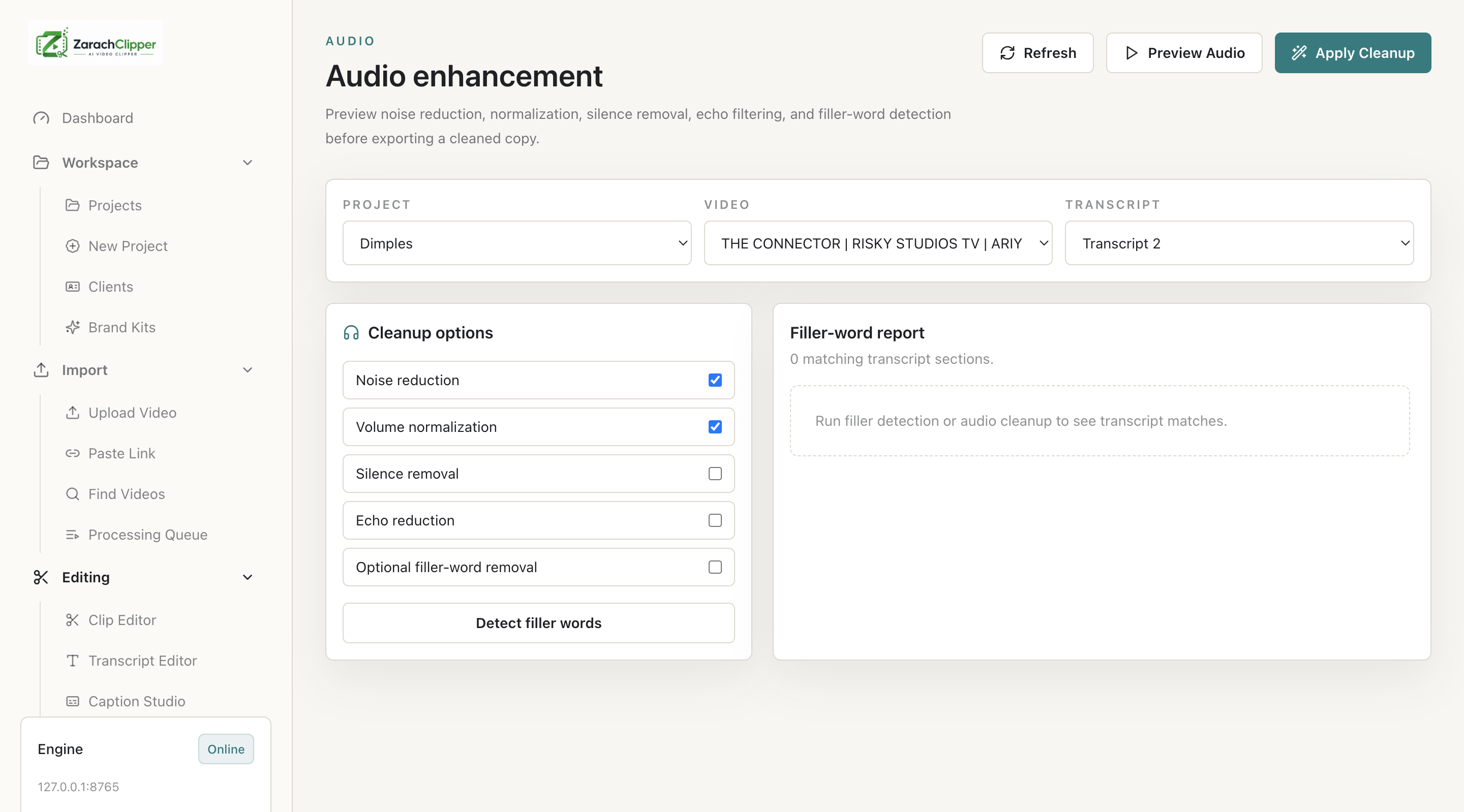
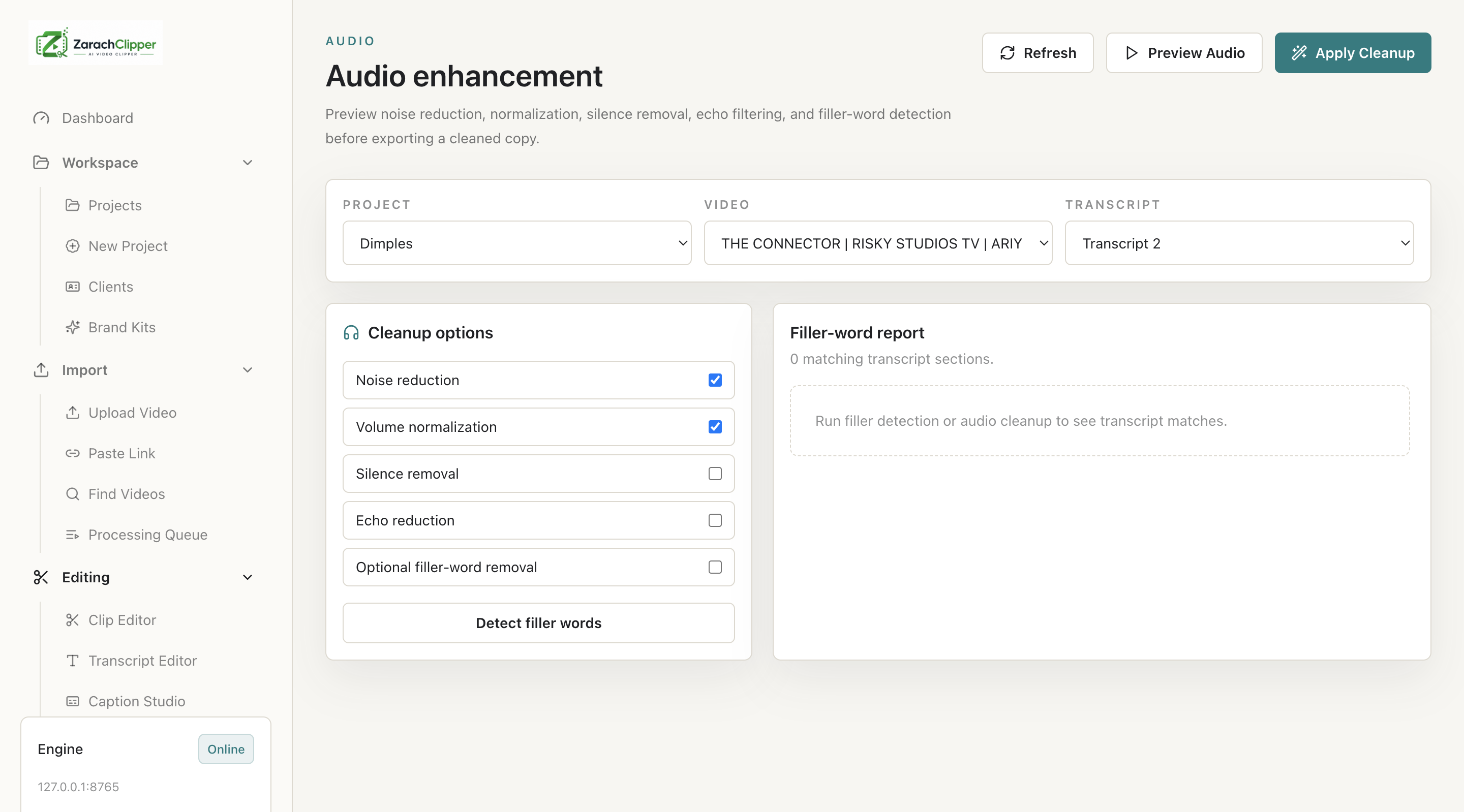
Audio Tools support noise reduction, volume normalization, silence removal, echo reduction, filler-word detection, preview cleanup, and apply cleanup.
Why Users Need It
Users need it when speech is unclear or background noise affects quality.
Where To Find It
Editing -> Audio Tools.
Before You Start
- Source media available
- Backup or draft workflow
Step-by-Step Guide
- Open Audio Tools.
- Select source.
- Choose cleanup settings.
- Preview cleanup.
- Adjust settings if needed.
- Apply cleanup.
- Use cleaned output in Clip Editor/export.
Screenshot Section
What To Check On The Screen
- Preview still sounds natural
- Original file preserved
- Music volume does not overpower voice
Expected Result
The user gets cleaner audio or verified audio settings before export.
Common Mistakes
- Applying aggressive cleanup
- Using unlicensed music
Troubleshooting
If audio sounds bad, reduce cleanup strength and preview again.