
Desktop Guide
Error Logs
Review error list, details, copyable reports, resolved state, and common diagnostics.
What This Feature Does
Error Logs show friendly errors, technical detail, module/source, copy report action, resolved status, and common issues such as missing tools, unsupported links, storage problems, and export failures.
Why Users Need It
Users and support staff need it to diagnose failed imports, queue jobs, transcription, render, export, and cloud issues.
Where To Find It
Settings -> Error Logs.
Before You Start
- Run the failing action once so a fresh error exists
Step-by-Step Guide
- Open Error Logs.
- Find the newest relevant error.
- Open details.
- Read friendly message and technical detail.
- Copy Error Report for support.
- Mark resolved after fixing.
Screenshot Section
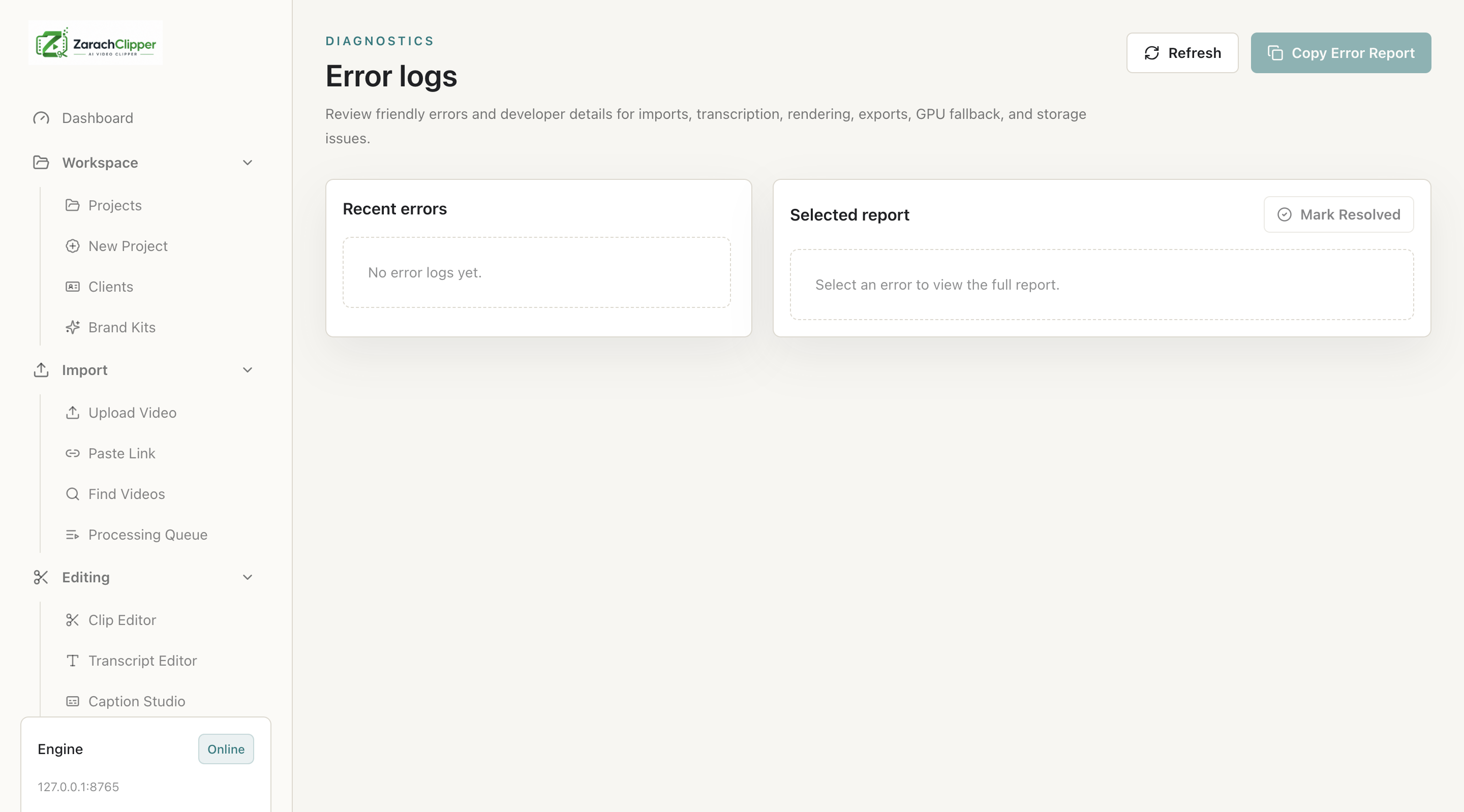
What To Check On The Screen
- Newest error is easy to identify
- Support report excludes secrets
- Resolved state is accurate
Expected Result
Users can understand failures and share useful support detail.
Common Mistakes
- Sending screenshots with private paths/tokens
- Retrying without fixing cause
Troubleshooting
Use Troubleshooting to map error to a fix.