Desktop Guide
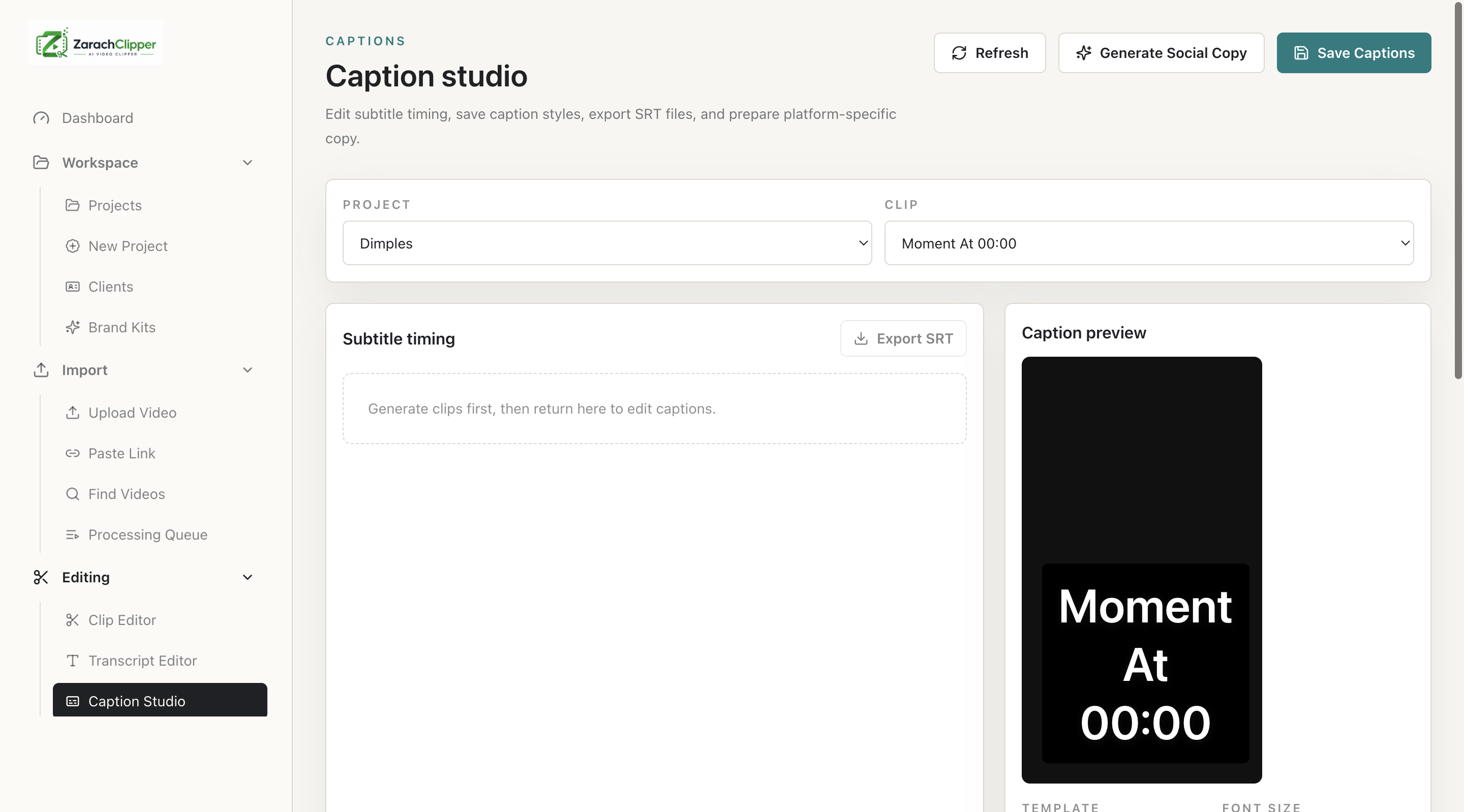
Caption Studio
Edit caption text, timing, presets, style, preview, SRT export, and burned-in captions.
What This Feature Does
Caption Studio controls readable captions: timing, text, standard/karaoke/word-by-word/bold keyword/emoji styles, font, color, background, outline, shadow, preview, SRT, and burned-in export.
Why Users Need It
Captions improve accessibility, retention, and mobile viewing when sound is off.
Where To Find It
Editing -> Caption Studio.
Before You Start
- A selected clip or transcript/caption data
- Clip timing close to final
Step-by-Step Guide
- Open Caption Studio.
- Select clip.
- Edit caption text.
- Adjust timing.
- Choose preset.
- Set style.
- Preview captions.
- Export SRT or burn captions during video export.
Screenshot Section
What To Check On The Screen
- Text matches speech
- Timing matches audio
- Captions do not cover faces or UI safe zones
Expected Result
The user has corrected captions ready for preview/export.
Common Mistakes
- Styling before proofreading
- Using low contrast colors
Troubleshooting
If captions are missing, create transcript/captions first and render a preview.