Desktop Guide
Installation
Install ZarachClipper on Windows, macOS, or Linux and verify the local engine.
What This Feature Does
Installation covers packaged app setup, first launch, tool checks, engine status, export/temp locations, and common OS warnings.
Why Users Need It
Users need this before they can import media or render clips reliably.
Where To Find It
Use the packaged installer, then open ZarachClipper -> Settings.
Before You Start
- Trusted installer package
- Enough disk space
- Permission to run the app on the machine
Step-by-Step Guide
- Install the app.
- Launch it from Applications, Start menu, or the Linux launcher.
- Open Settings.
- Confirm local engine status.
- Confirm FFmpeg and FFprobe status.
- Confirm transcription support.
- Review export and temp file locations.
Screenshot Section
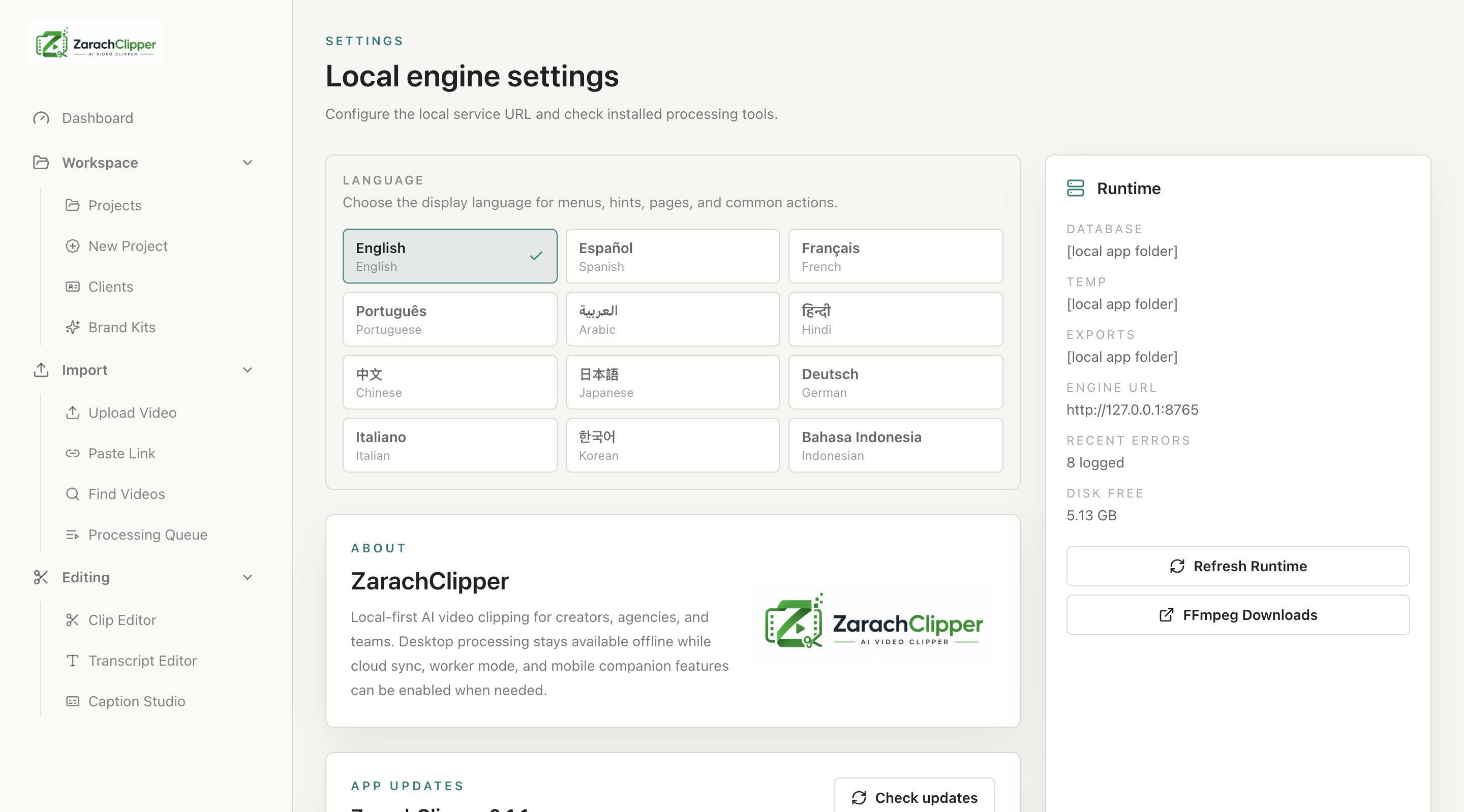
What To Check On The Screen
- Engine is ready
- Tool status is clear
- Storage locations are known
Expected Result
The user has a working installed app ready for local desktop processing.
Common Mistakes
- Ignoring Windows SmartScreen or macOS Gatekeeper context
- Assuming Python/npm are needed for packaged releases
Troubleshooting
If the app does not open, reinstall from a trusted release and review OS security prompts.