Choose Your Setup
Use Desktop Only
Set up ZarachClipper for local-first desktop editing without requiring cloud login.
Best For
Best for creators and editors who want import, transcript, clip discovery, preview, export, storage cleanup, and app updates on one laptop or workstation.
When To Use This Option
- You want the fastest local workflow.
- You do not need team sync, mobile handoff, or desktop-worker routing yet.
- Your source videos are local files or supported public links.
Setup Steps
- Install the packaged app for macOS or Windows. Packaged users should not run Python or npm setup commands.
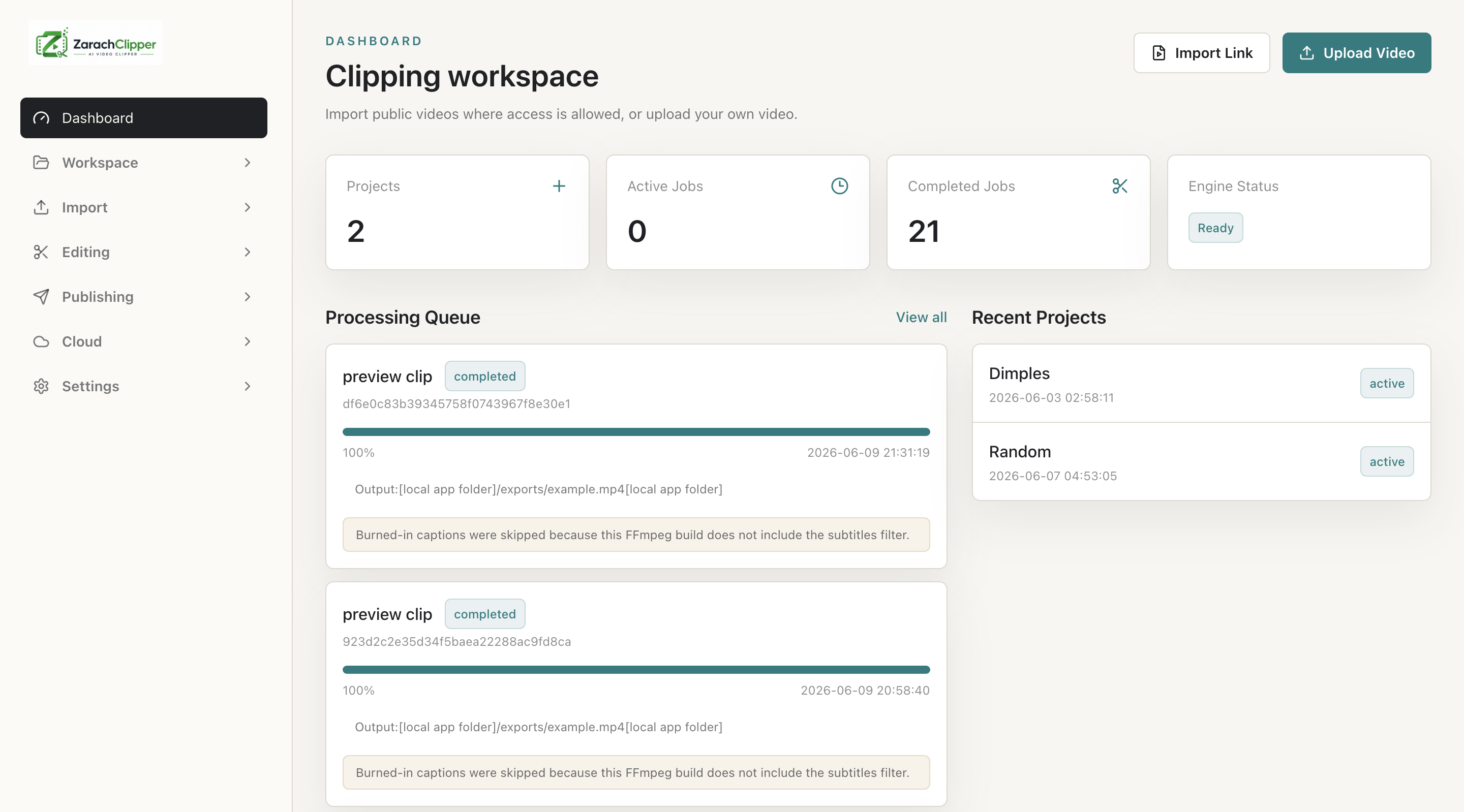
- Open ZarachClipper and confirm Dashboard loads.
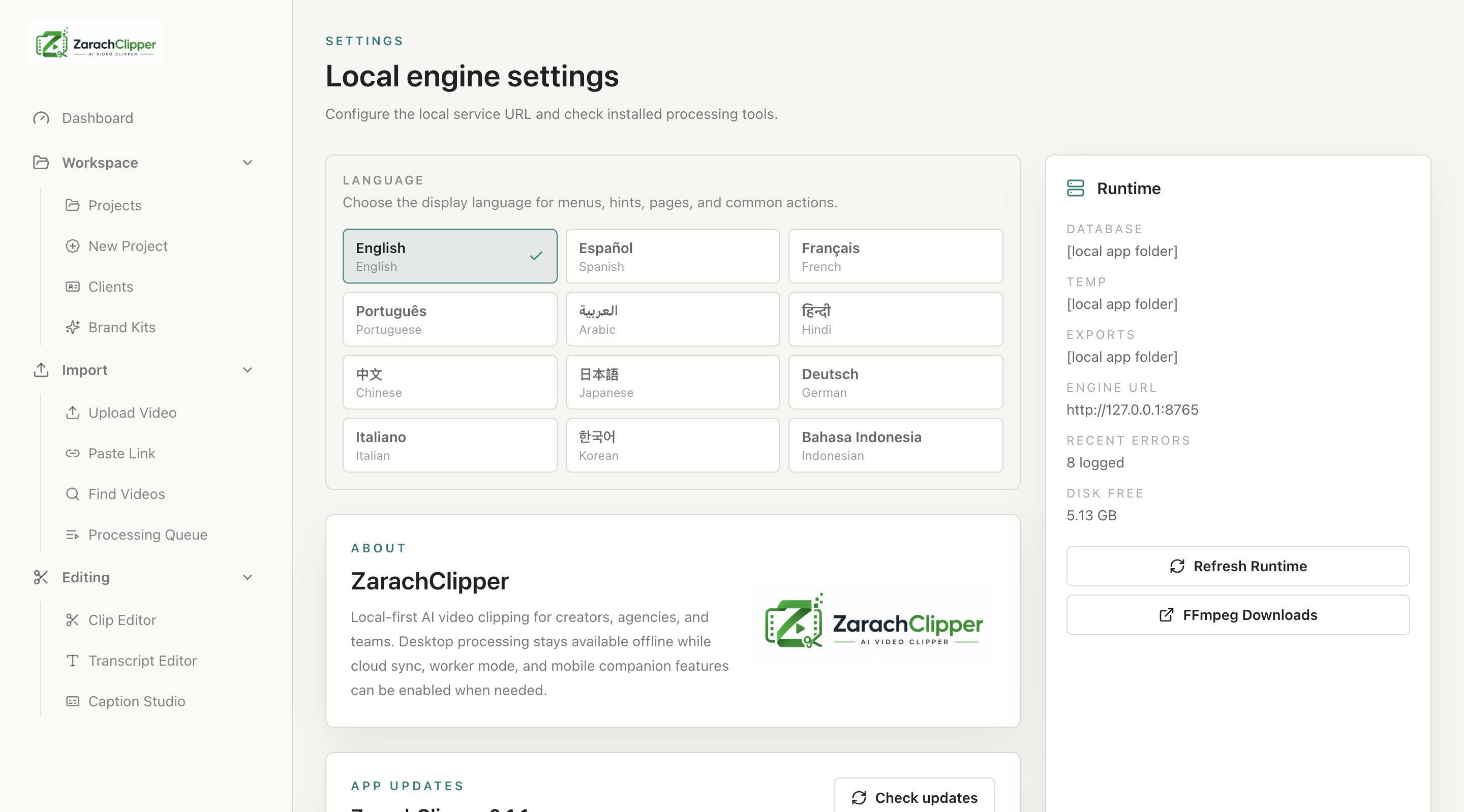
- Open Settings and verify the local engine URL is `http://127.0.0.1:8765` unless you intentionally changed it.
- Confirm FFmpeg, FFprobe, yt-dlp, and transcription support are ready or clearly marked with fix instructions.
- Choose export and temp/storage folders you can find later.
- Create a project, upload a local video or paste a supported public link, then monitor Processing Queue.
- Cloud login is optional and does not automatically upload or download source videos. Choose full media import/upload only when you need media transfer.
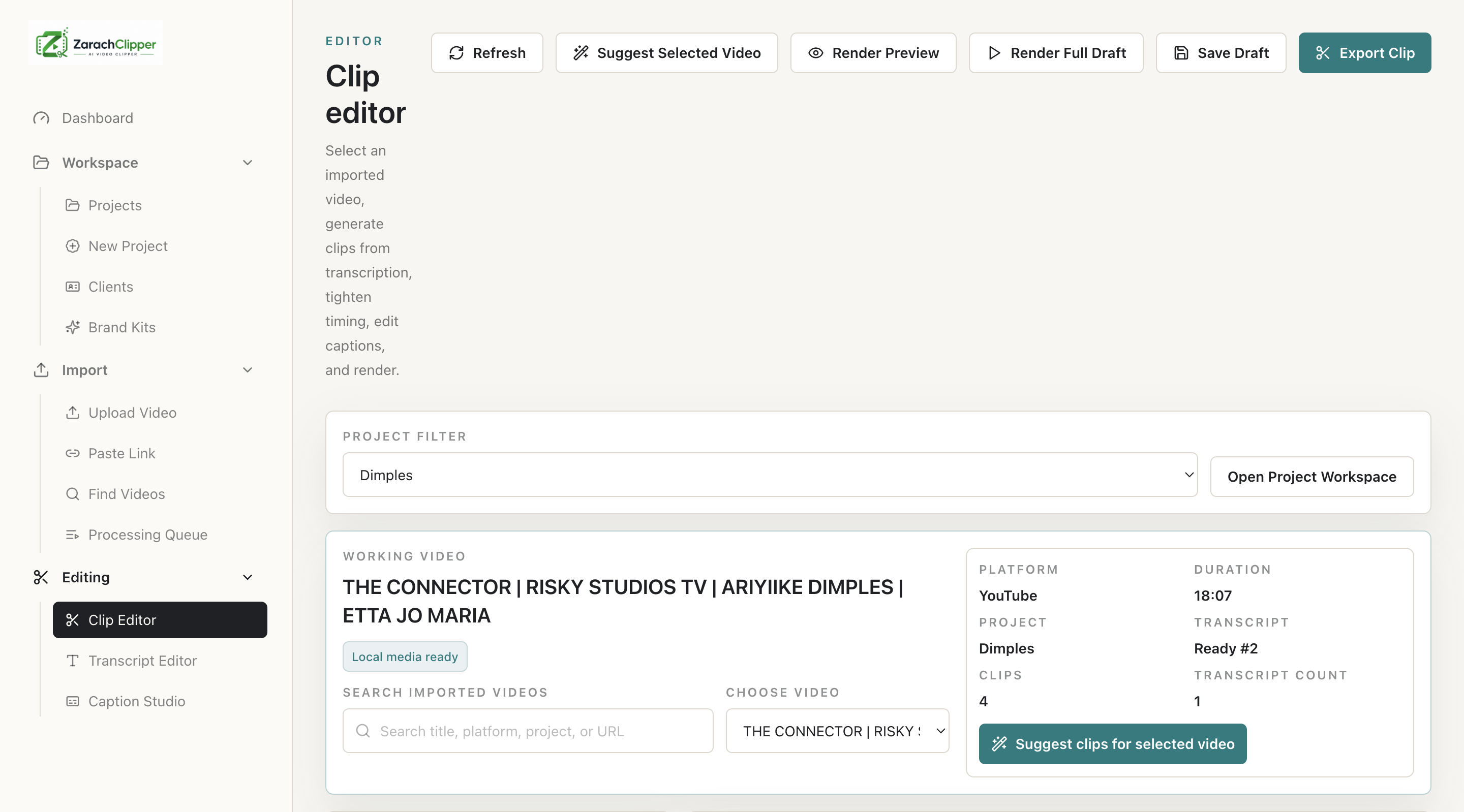
- Open Clip Editor, select the Working Video, reuse or create a transcript, suggest clips, render preview, and export.
- Use Settings -> App Updates to check, download, verify, then install and restart. Older builds may require one guided/manual install before automatic replacement is available.
Settings Checklist
| Setting | Recommended value | Where to check |
|---|---|---|
| Engine URL | http://127.0.0.1:8765 | Settings -> Engine settings |
| Cloud login | Optional | Cloud Account page |
| Import method | Local file first; public links where allowed | Upload Video or Paste Link |
| Preview/export | Render locally before sharing | Clip Editor |
| Updates | Install and restart after verified download | Settings -> App Updates |
Real Screenshots