Desktop Guide
Clip Templates
Use built-in or custom templates to apply repeatable clip settings.
What This Feature Does
Templates store aspect ratio, duration target, caption preset, quality, watermark usage, and intro/outro preferences.
Why Users Need It
Users need templates to quickly repeat proven formats for podcasts, interviews, education, ads, real estate, lectures, commentary, and more.
Where To Find It
Editing -> Templates.
Before You Start
- Know target platform and content type
Step-by-Step Guide
- Open Templates.
- Review built-in templates.
- Create custom template if needed.
- Set template settings.
- Save template.
- Select it in Clip Editor.
Screenshot Section
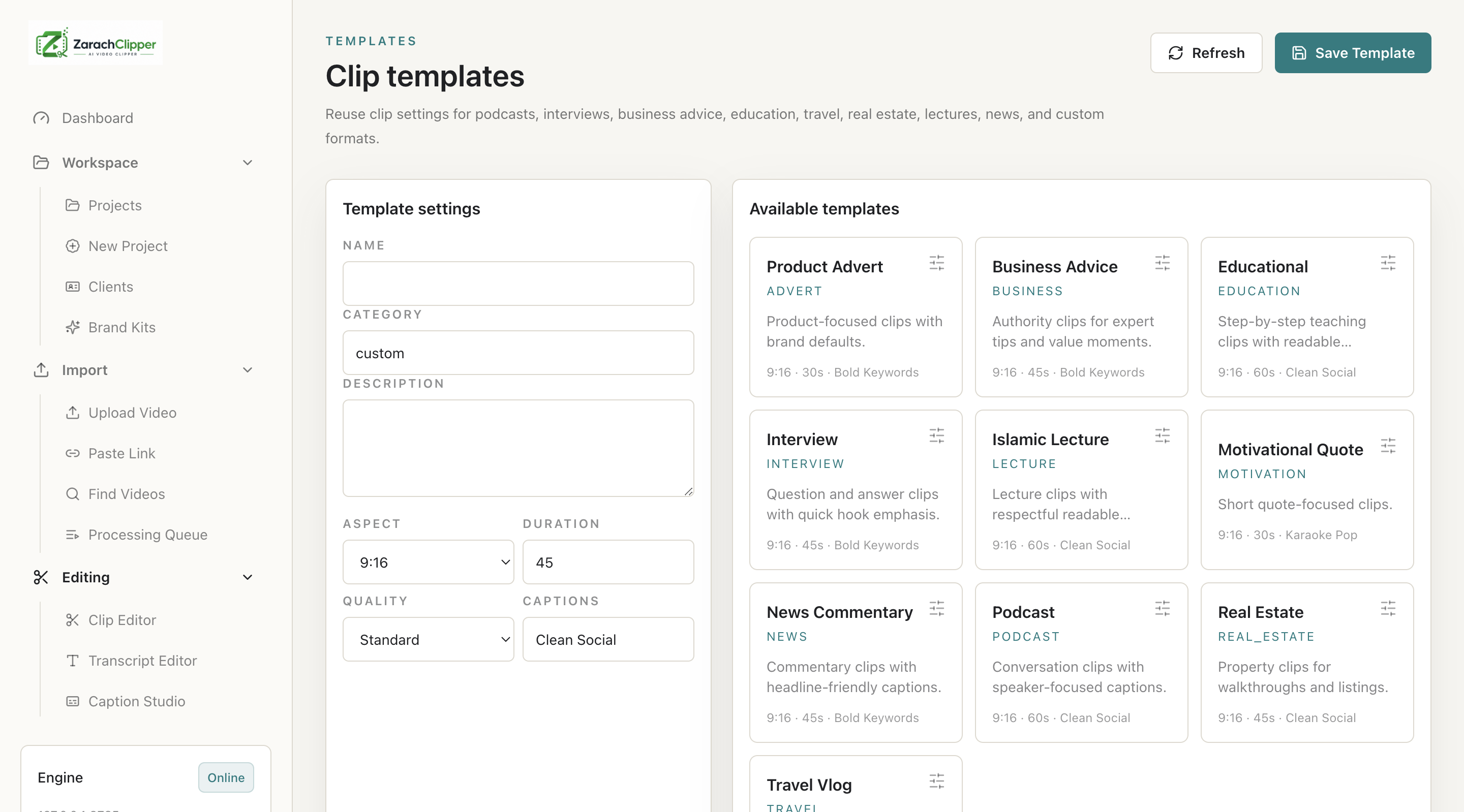
What To Check On The Screen
- Template matches platform
- Settings apply in Clip Editor
Expected Result
The user can apply repeatable clip settings quickly.
Common Mistakes
- Using a horizontal template for vertical clips
Troubleshooting
If settings do not apply, reselect template and preview before export.