Desktop Guide
Link Import
Inspect and import supported public or direct media links.
What This Feature Does
Link Import accepts a URL, inspects public metadata, creates metadata-only records when needed, and imports local media where access is allowed.
Why Users Need It
Use it when source media is available through a supported public link and you have permission to use it.
Where To Find It
Import -> Paste Link.
Before You Start
- Public or accessible URL
- yt-dlp available for supported platforms
- Permission to use content
Step-by-Step Guide
- Open Paste Link.
- Select project.
- Paste URL.
- Inspect link.
- Review metadata and warnings.
- Use Import Media if available.
- Monitor queue.
- Open media in Clip Editor after local import completes.
Screenshot Section
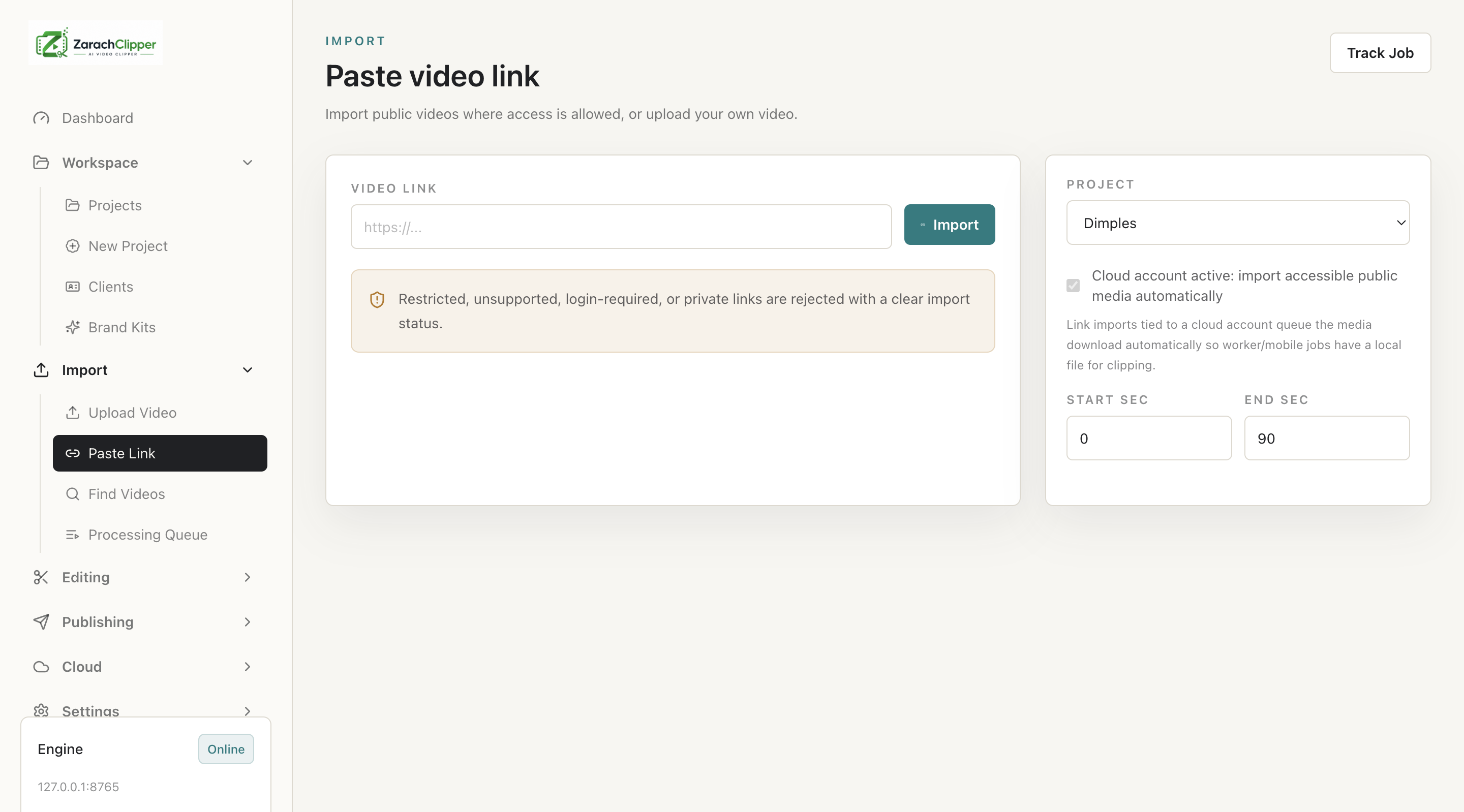
What To Check On The Screen
- Media status is ready before clip discovery
- Warnings are understood
- User has permission to use the content
Expected Result
The app imports local media or clearly explains why the link cannot be imported.
Common Mistakes
- Assuming every public page allows download
- Running suggestions on metadata-only records
Troubleshooting
If a link fails, try local file import and review Error Logs for source restrictions.